The Ultimate Tesla Model Y Juniper Autopilot Guide: Essential Settings & Practical Tips for Beginners
"While many talk about the expensive FSD (Full Self-Driving) upgrades, millions of Tesla owners rely on the included Basic Autopilot for their daily commute. If you aren't paying the $99/month for FSD, mastering these standard Autopilot settings is mandatory..."
Even with the overwhelming convenience of Tesla’s Autopilot, many new Model Y Juniper owners find themselves terrified by sudden accelerations or frustrated by relentless steering wheel warnings. These issues are rarely software glitches; rather, they stem from a lack of personalized calibration.
If your Tesla feels more like a roller coaster than a futuristic chauffeur, this comprehensive guide will walk you through the essential settings to eliminate motion sickness and steering nags, along with practical tips for conquering speed bumps, winding roads, and highways.
1. Eradicating Phantom Braking and Sudden Acceleration
If your Model Y violently accelerates when you engage Autopilot, or constantly jerks forward and slams the brakes in stop-and-go traffic, you need to adjust two critical settings on your center display immediately.
- Set Target to 'Current Speed': If your Autopilot is set to default to the 'Speed Limit', engaging it while cruising comfortably at 60 km/h will cause the car to floor the accelerator to reach a 100 km/h limit. Changing this setting to 'Current Speed' ensures a buttery-smooth transition when autonomous driving begins.
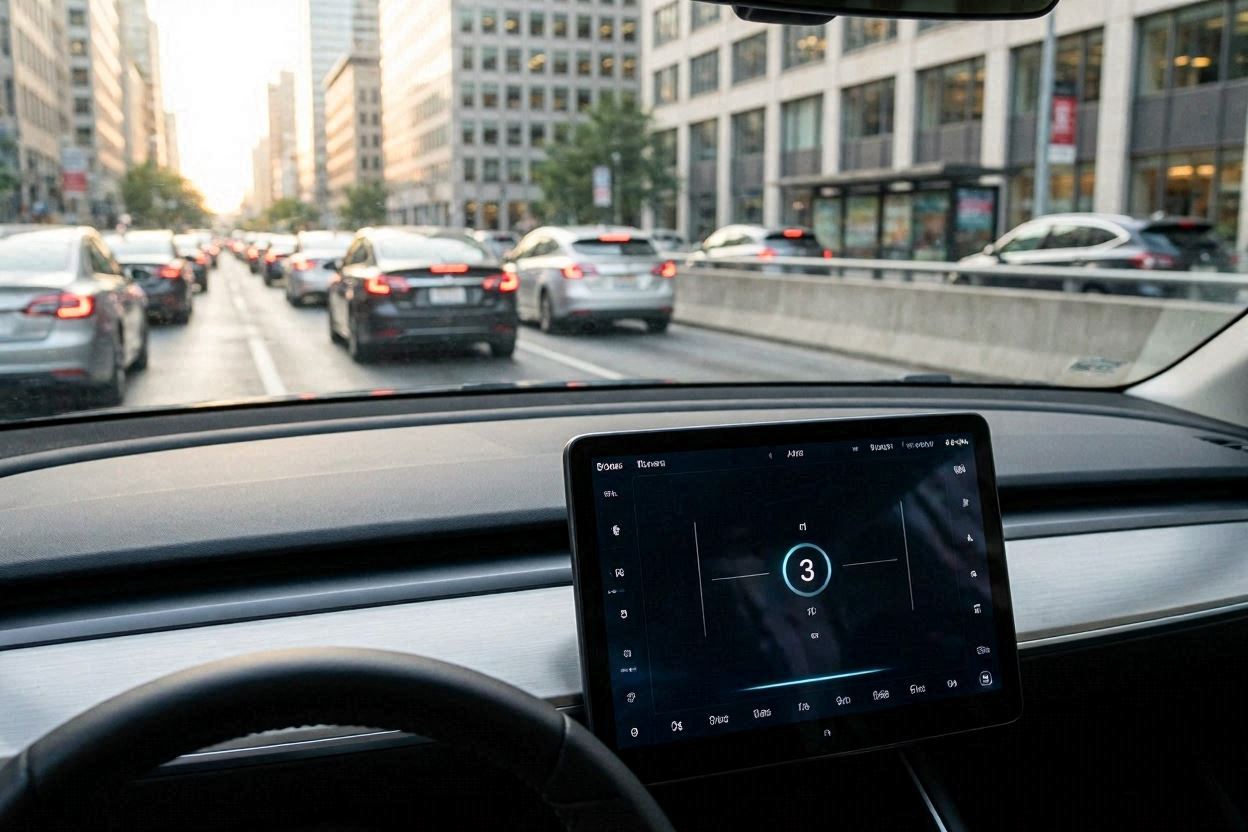
- The Secret of Following Distance (Time, Not Space): Scrolling the right wheel left or right adjusts your following distance from 2 to 7. Many mistakenly believe this represents physical car lengths, but it is actually a time-based interval. If you leave it at 7 in heavy city traffic, your car will react too late when the vehicle ahead moves. This massive gap invites other drivers to cut in, causing your Tesla to brake aggressively. For smooth city driving, reduce this distance to 3 or 4. The car will track the leading vehicle closely and smoothly, eliminating the dreaded "jerkiness."
2. The 1-Second Fix for the Blue Steering Wheel Nag
Are you gripping the steering wheel with both hands, yet the blue warning light continues to flash? Tesla’s system does not measure the grip pressure of your hands; it measures the rotational force, or torque, applied to the steering column. When you hold the wheel rigidly with both hands, the forces cancel each other out, leading the car to believe your hands are off the wheel.
The ultimate fix is the '7 o'clock or 9 o'clock grip'. Simply rest one hand casually at the bottom left or middle left of the wheel. The natural weight of your resting arm applies a constant, micro-torque to the steering column, completely silencing the nagging alerts. (Disclaimer: Never use steering wheel defeat devices or weights. Autopilot jail is real—five strikes and you are banned from using the system for a full week.)
3. Three Reasons Autopilot Disengages (And How to Handle It)
- Changing Lanes: When you activate the turn signal and manually turn the wheel to change lanes, Autosteer assumes you are taking over and turns off with a chime. This is perfectly normal. Simply re-engage it once centered in the new lane.
- Exceeding 140 km/h (87 mph): For safety reasons, Autopilot is strictly disabled if you push the vehicle past 140 km/h.
- Pressing the Accelerator: If you press the accelerator while Autopilot is active (e.g., to pass a slow car), the system will not disengage. Instead, a blue banner appears stating, "Cruise control will not brake." The car expects you to manage the distance until you lift your foot off the pedal.
A close-up of a driver's hand resting easily at the 7 o'clock position on the steering wheel. The digital display shows the blue Autopilot steering wheel icon engaged.
Resting your hand at the 7 o'clock position uses the natural weight of your arm to apply micro-torque, effortlessly silencing the system's steering wheel nag.

4. Practical Driving: Conquering Difficult Terrains
- Endless Speed Bumps: Autopilot is notoriously bad at recognizing and slowing down for speed bumps. Here is a pro tip: When approaching a bumpy zone, scroll the right wheel down aggressively to drop the set speed to 0 km/h. Autosteer will keep you perfectly centered in the lane, but you can manually control the speed over the bumps using the accelerator pedal. Once clear, scroll back up to your cruising speed.
- Winding Roads & Sharp Curves: On aggressive mountain roads, Autosteer will often fail and disengage. To avoid the stress of constant disengagements, switch exclusively to Traffic-Aware Cruise Control (TACC). Let the Tesla handle the speed and braking while you take 100% control of the steering. Your feet get a break, and you maintain complete directional control.
- Highway Cruising: The highway is where Autopilot truly dominates. It reacts to sudden cut-ins and braking vehicles smoother and faster than human reflexes. Trust the system on long road trips, and you will arrive at your destination with a fraction of the physical and mental fatigue.
5. Bonus Tip: The 1-Second Visual Check with 'Rainbow Road'

It can occasionally be confusing to know if Autopilot is fully engaged. Head over to the 'Toybox' menu on your display and activate the 'Rainbow Road' feature. Whenever Autopilot is active, the standard grey driving lane on your visualization turns into a vibrant, scrolling rainbow. It adds a touch of fun to the cabin and provides an instant, peripheral visual cue that the car is driving itself.
By calibrating these essential settings and understanding the situational mechanics of the Tesla Model Y Juniper, you can finally unlock the true, stress-free potential of future mobility.