When sharing a long YouTube video—whether it is a multi-hour music playlist, a detailed programming tutorial, or an in-depth macro-economic analysis—you often want someone to see one specific highlight. Instead of telling them to "skip to 3 minutes and 45 seconds," you can generate a custom timestamped URL. This guide covers how to link to an exact start time on both PC and mobile devices effortlessly.
1. The Desktop (PC/Mac) Methods: Fast & Built-in
If you are browsing YouTube on a desktop or laptop computer, Google provides two native UI shortcuts to grab a timestamped link in seconds.
Method A : The Right-Click Shortcut (Recommended)
This is the absolute fastest way to extract a precise timestamp link directly from the video player interface.
- Stream the video and hit [Pause] at the exact second you want your recipient to begin watching.
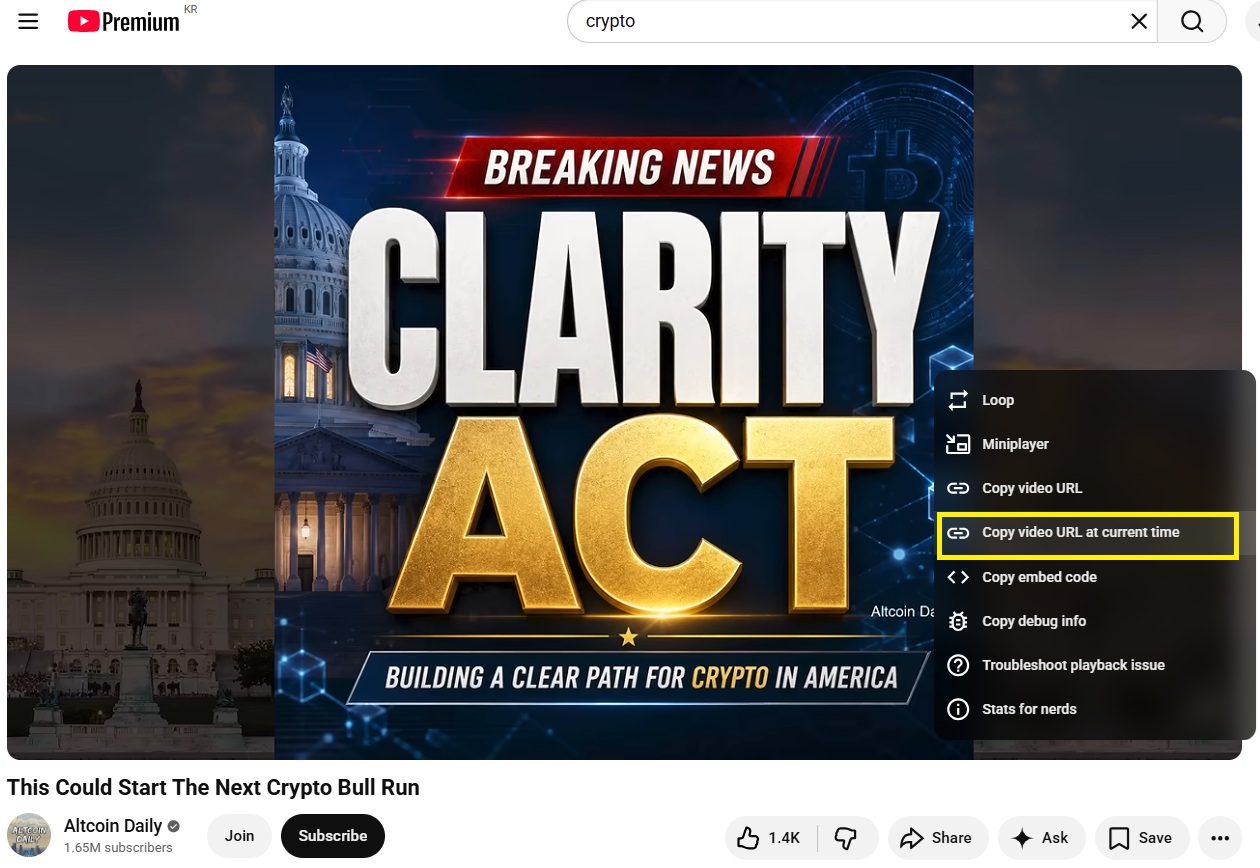
- Right-click anywhere directly inside the video playback window.
- From the context menu, select [Copy video URL at current time].
- The modified link is now saved to your clipboard. Simply press Ctrl + V (or Cmd + V on Mac) to paste and share it anywhere.
Method B: The Share Menu Option
If you prefer using the standard platform navigation layouts, the native share panel offers a clean alternative.
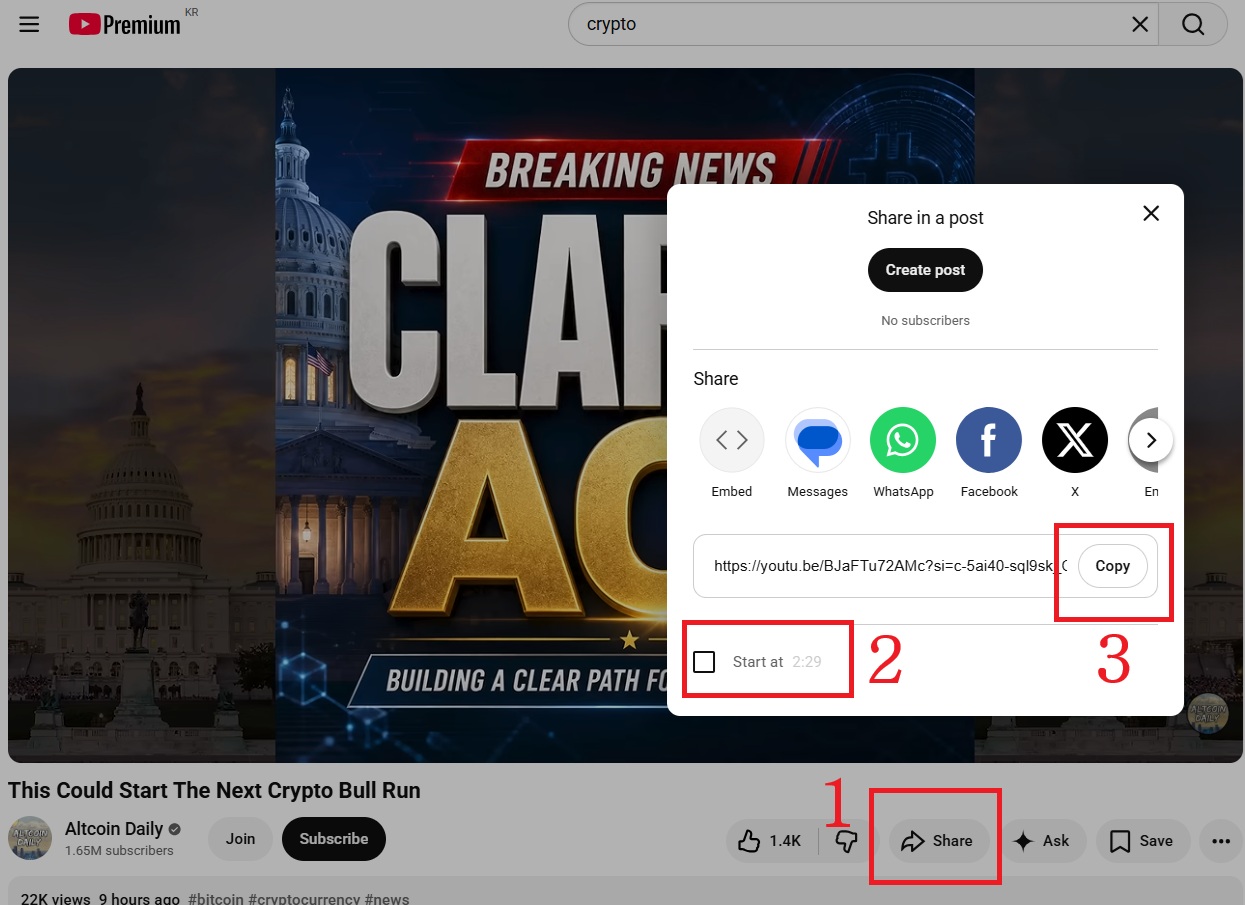
- Navigate down to the lower-right section beneath the video player and click the [Share] button (labeled as 1).
- In the pop-up modal that appears, look at the bottom toolbar and check the box next to [Start at] (labeled as 2). The interface automatically populates this field with your current paused position.
- Click the [Copy] button (labeled as 3) next to the newly adjusted URL string to save it.
2. The Mobile Method : Using the URL Cheat Code
The native YouTube app on iOS and Android does not feature a "Start at" checkbox within its sharing interface. However, you can manually append a simple URL query parameter (a "cheat code") to any standard shared link to dictate the exact start frame.
The Mobile Formula
When you generate a short link using the mobile app's share feature, it formats the text as [https://youtu.be/](https://youtu.be/)[Video_ID]. To force a specific starting point, you append ?t= followed by the time metrics right to the end of that string.
Scenario Examples
Example 1: Starting exactly at 45 seconds Append ?t=45 to the end of the short link.
Example 2: Starting at 2 minutes and 30 seconds Append ?t=2m30s using minutes (m) and seconds (s).
Example 3: Starting deep into a video at 1 hour, 10 minutes, and 5 seconds Append ?t=1h10m5s using hours (h), minutes (m), and seconds (s).
(Note: If you are altering a full desktop URL that uses the [youtube.com/watch?v=](https://youtube.com/watch?v=)[Video_ID] format instead of the short youtu.be/ layout, use an ampersand (&t=) instead of a question mark to append your time.)
Summary of Benefits
Mastering these timestamp techniques optimizes your digital communication efficiency. It ensures your audience bypasses introductory fluff, sponsored segments, or long transitions, dropping them directly into the high-value information immediately upon clicking.
Personally, I regularly watch YouTube lectures, crypto, and macroeconomic analyses. I’ve found that being able to instantly jump to specific sections or replay key parts makes learning so much more efficient. If you haven't tried it yet, I definitely recommend giving this method a go!
[In-Depth Analysis & Guides]
"If you want to master your PC and mobile devices more efficiently and experience the true power of AI in your daily workflow, check out my collection of easy-to-follow tips and guides below. Click through and level up your tech experience!"
How to Transfer a Child's Google Account and YouTube Channel to an Adult (Ultimate Guide)
How to Transfer a Child's Google Account and YouTube Channel to an Adult (Ultimate Guide)
You blinked, and suddenly your child is off to college. You’ve packed their bags, set up their dorm, and prepared them for the real world. But there is one tangled mess left behind: their digital identity. If they’ve been using a Google account tied to
cryptoteslaglobal.com
How to Bypass YouTube’s Adblock Detection on PC (Using Tampermonkey & GitHub Script)
How to Bypass YouTube’s Adblock Detection on PC (Using Tampermonkey & GitHub Script)
Are you frustrated with YouTube’s intrusive "Ad blockers are not allowed" pop-up blocking your video playback? Even standard extensions like AdBlock or uBlock Origin sometimes trigger this warning. Discover the ultimate desktop solution: using Tampermonk
cryptoteslaglobal.com
How to Fix YouTube ReVanced Buffering Forever : Auto-Updates via Obtainium
How to Fix YouTube ReVanced Buffering Forever : Auto-Updates via Obtainium
Frustrated with YouTube ReVanced constantly buffering or breaking after a few weeks? Discover how to use Obtainium to pull seamless, automated patches directly from GitHub for uninterrupted background playback. 1. The Cost of Ad-Free Streaming and the ReVa
cryptoteslaglobal.com