Are you frustrated with YouTube’s intrusive "Ad blockers are not allowed" pop-up blocking your video playback? Even standard extensions like AdBlock or uBlock Origin sometimes trigger this warning. Discover the ultimate desktop solution: using Tampermonkey and an open-source GitHub userscript to completely bypass detection and enjoy seamless, ad-free streaming—100% for free.
1. The Cat-and-Mouse Game : YouTube vs. Traditional Adblockers

YouTube has significantly ramped up its war against ad blockers. Millions of users worldwide who rely on standard browser extensions have suddenly found their screens locked by aggressive warning pop-ups.
When standard extensions fail, the tech community turns to advanced userscripts. Instead of relying on a static filter list, we can use a dynamic script hosted on GitHub that automatically bypasses YouTube's reminder prompts. Here is the step-by-step guide to setting it up on Google Chrome.
2. Step 1 : Install the Tampermonkey Extension

First, we need a script manager capable of executing the bypass code directly within your browser session.
- Launch Google Chrome on your PC.
- Navigate to the Chrome Web Store to download Tampermonkey.
- Click [Add to Chrome] (or the corresponding button in your local UI) to successfully install the extension.
3. Step 2 : Create a New Userscript


Once installed, you need to open Tampermonkey's built-in text editor to create a blank canvas for the open-source code.
- Click the [Tampermonkey icon] (the black icon with two white circles) in the top-right extension bar of your Chrome browser.
- From the drop-down menu, select [Create a new script].
- An editor window filled with default template text will appear. Press Ctrl + A to select everything, and hit Delete to completely clear the screen.
4. Step 3 : Copy the Open-Source Bypass Code from GitHub

Now, we will fetch the live bypass script developed by the open-source community, specifically designed to bypass YouTube's restrictions.
- Go directly to the public repository link: GitHub - RemoveAdblockThing Userscript.
- Inside the code box displaying the JavaScript code, select all text by pressing Ctrl + A, then press Ctrl + C to copy it to your clipboard.
5. Step 4 : Paste, Save, and Enjoy Ad-Free YouTube
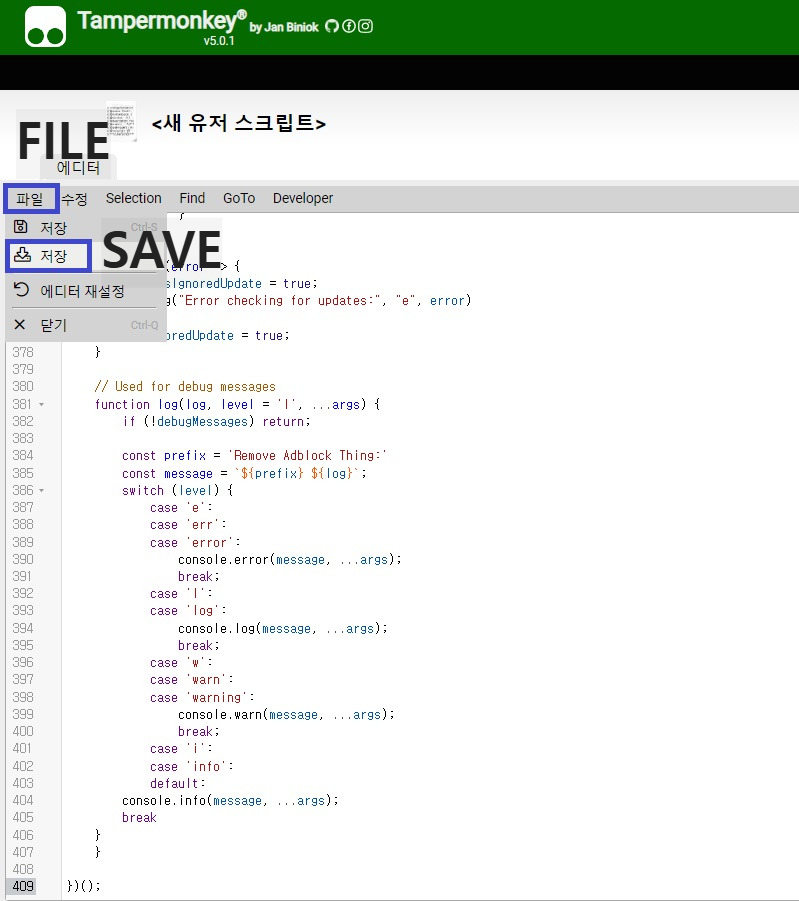
With the code copied, return to the empty Tampermonkey editor tab you prepared in Step 2.
- Press Ctrl + V to paste the entire GitHub script into the editor.
- Go to the [File] menu at the top-left of the editor interface and click [Save] (or press Ctrl + S).
- Close your Chrome browser completely and restart it.
6. The Result : Pure Efficiency
Now, head over to youtube.com and click on any video. You will notice that the intrusive anti-adblock pop-ups are entirely gone. When a video reaches an ad placement interval, the script instantly triggers a millisecond-long blink, completely skipping the advertisement and immediately resuming your content.
This desktop productivity hack ensures you never lose momentum while consuming long-form content, saving you precious time and a subscription fee.