Just installed a massive 4TB or 8TB hard drive, but Windows only recognizes 2TB? Don't panic. Discover why this happens and learn two simple methods to convert your drive from MBR to GPT to unlock its full capacity.
1. The 2TB Panic : Understanding MBR vs. GPT

Building a PC or upgrading your storage should be an exciting experience. I recently installed a brand-new 4TB hard drive to expand my storage. However, when I opened Windows to initialize the new volume, I was shocked: the system only recognized it as a 2TB drive. The culprit? MBR (Master Boot Record). Windows offers two primary partition styles: MBR and GPT (GUID Partition Table). MBR is a legacy architecture that physically cannot map storage space beyond 2TB. To fully utilize modern high-capacity drives (3TB, 4TB, and beyond), or to meet the strict UEFI requirements for Windows 11, you must use GPT. If you accidentally initialized your new drive as MBR, here are two foolproof ways to convert it to GPT.
2. Method 1 : The Command Prompt (Diskpart) Solution
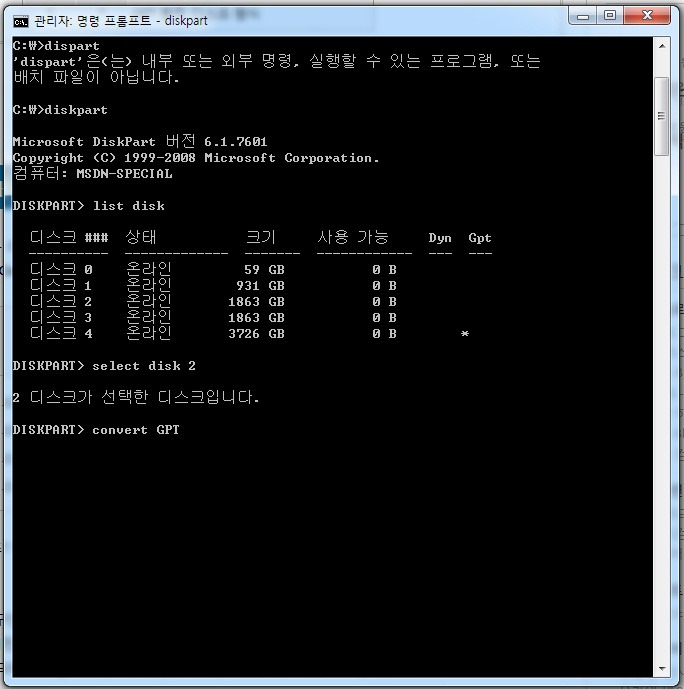
If you prefer using the command line for a quick fix, Windows has a built-in tool called diskpart that handles this flawlessly.
- Click the Start button, type cmd, and open the [Command Prompt]. (Run as Administrator).
- Type diskpart and press Enter.
- Type list disk and press Enter. This will display all drives connected to your PC. Carefully identify the disk number of the drive you want to convert (for example, Disk 4).
- Type select disk X (replace X with your specific disk number, e.g., select disk 4) and press Enter.
- Finally, type convert gpt and press Enter. Boom! Your drive is now successfully converted to a GPT partition and will display its full capacity.
3. Method 2 : The Windows Disk Management Route
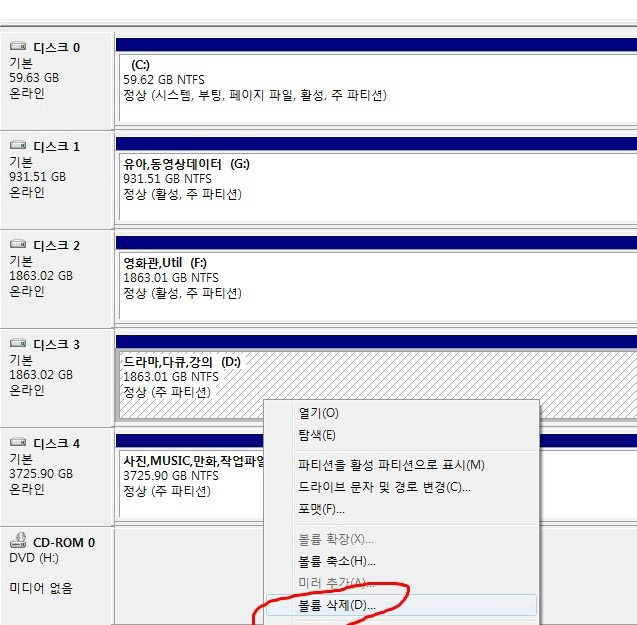
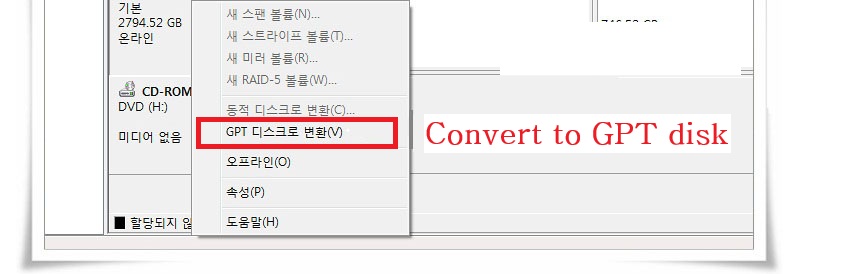
If you prefer a visual interface over a black command screen, the Windows Disk Management tool makes this process incredibly easy.
- Right-click the Windows Start button (or your My Computer icon) and select [Disk Management].
- Locate your newly installed hard drive in the bottom list. If it's limited to 2TB, it means it's formatted as MBR.
- First, you must clear the drive. Right-click on the allocated volume (the blue or black bar next to the disk name) and select [Delete Volume...]. (Note: Do this only on an empty drive, as it deletes all data on that specific partition!)
- Once the volume is deleted and the space shows as "Unallocated," right-click directly on the Disk Name box on the left side (e.g., "Disk 1" or "Disk 4").
- Select [Convert to GPT Disk] from the drop-down menu.
- You can now right-click the unallocated space to create a "New Simple Volume" utilizing the entire 4TB+ capacity!
4. Conclusion : Essential Knowledge for Modern PC Builds
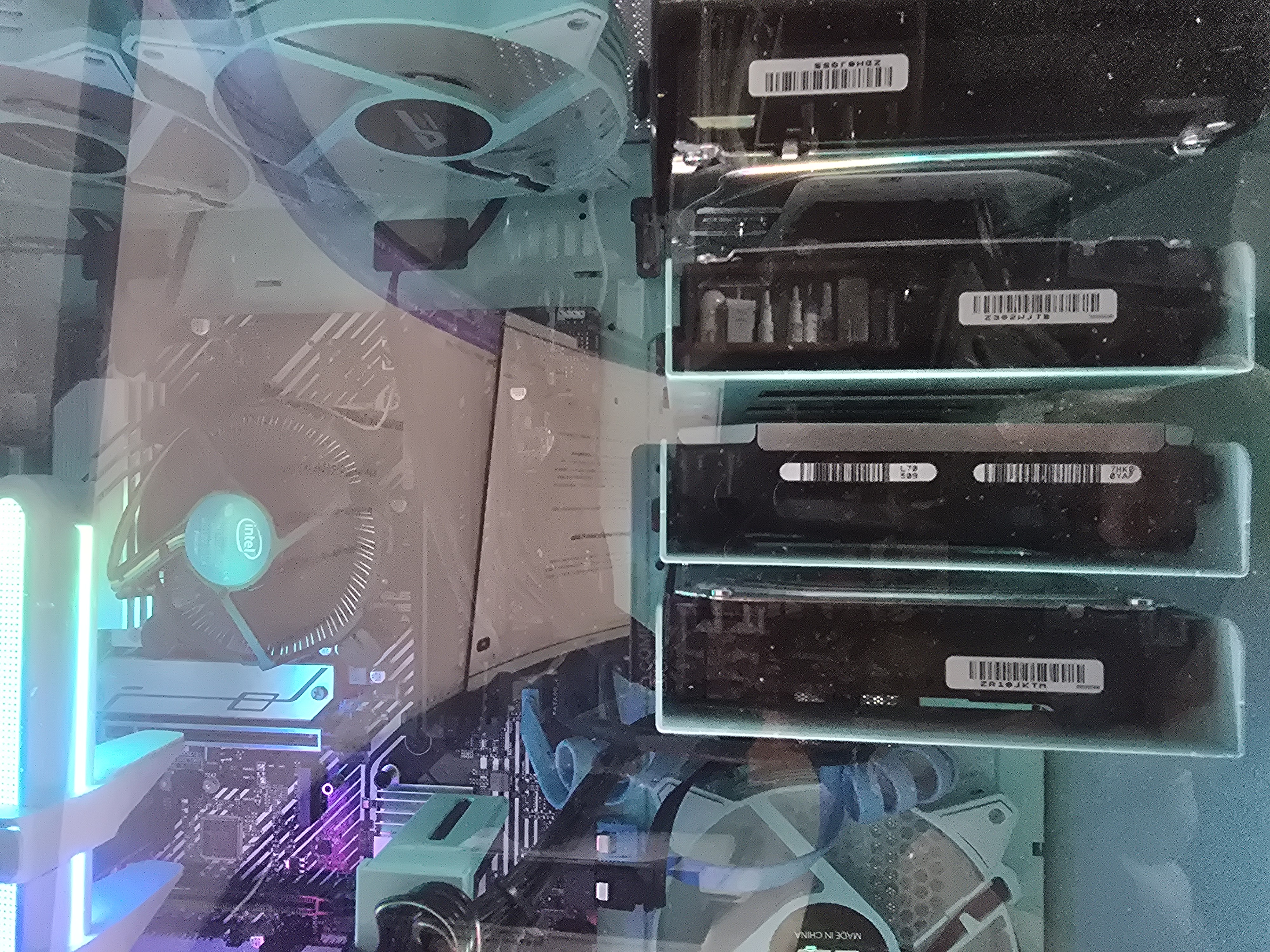
While cloud storage is popular, content creators, gamers, and video editors still rely heavily on massive local storage solutions like 8TB or 12TB HDDs. Knowing the difference between MBR and GPT is fundamental for modern PC building and storage management. If you ever face the dreaded 2TB limit, just remember these two quick conversion methods to unleash your drive's true potential.
Personally, I’m currently mapping out my own NAS setup. I'm planning to pick up some high-capacity, NAS-grade HDDs and pair them with a Synology enclosure—it’s the next step I’m taking to keep all my data centralized and managed efficiently.