Missing a Heads-Up Display (HUD) and frustrated with Tesla's native navigation? Discover how to use iOS Shortcuts to automatically launch your favorite navigation app and HUD the moment you place your iPhone on the MagSafe charger.
1. The Missing Pieces in the Tesla Experience: HUD and Navigation
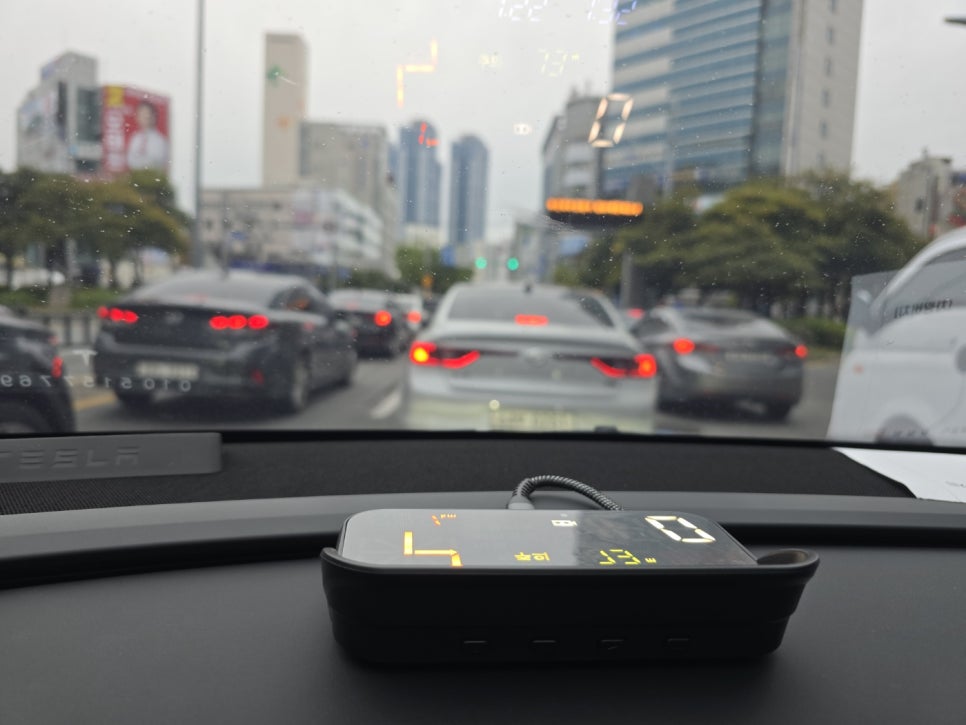
Clean installation of the T-Plus HUD in the Tesla Model Y Juniper. (Day)
When I finally decided to purchase the Tesla Model Y Juniper, there was one major hesitation: the lack of a Heads-Up Display (HUD). Having driven a BMW 320d and a Hyundai Palisade Calligraphy for over a decade, I had grown accustomed to keeping my eyes strictly on the road while comfortably checking my speed, speed limits, and navigation directions via the windshield HUD. Since Tesla is designed with a heavy focus on Full Self-Driving (FSD), there isn't even an instrument cluster behind the steering wheel. To make matters worse, the native navigation displayed on the 16-inch center screen often falls short in providing detailed lane guidance or speed camera alerts compared to dedicated local apps.
2. The Hardware Solution: T-Plus HUD and a Dual-Phone Setup

Clean installation of the T-Plus HUD in the Tesla Model Y Juniper. (Night)
To solve this, I installed an aftermarket device called the T-Plus HUD. I meticulously routed the cables for a clean, OEM-like look and mounted it perfectly at my eye level (though you can also push it further down toward the windshield, like traditional BMW or Hyundai setups). My connectivity strategy relies on a dual-phone setup:
- Primary Phone (Galaxy S24 Ultra): Registered as the primary Tesla Key. It connects via Bluetooth first, handling all phone calls, Spotify, and media playback through the car's sound system.
- Secondary Phone (iPhone): Exclusively dedicated to running my navigation app (like Waze or Google Maps) and mirroring data to the T-Plus HUD.
3. The Magic of iOS Shortcuts: Zero-Touch Automation
The goal was simple: I didn't want to manually open apps every time I got into the car. I wanted my iPhone to automatically launch my navigation and HUD app the moment I attached it to the MagSafe wireless charger, and close everything when I disconnected it.
Here is the exact step-by-step guide to setting up this seamless automation using the iPhone's built-in Shortcuts app.
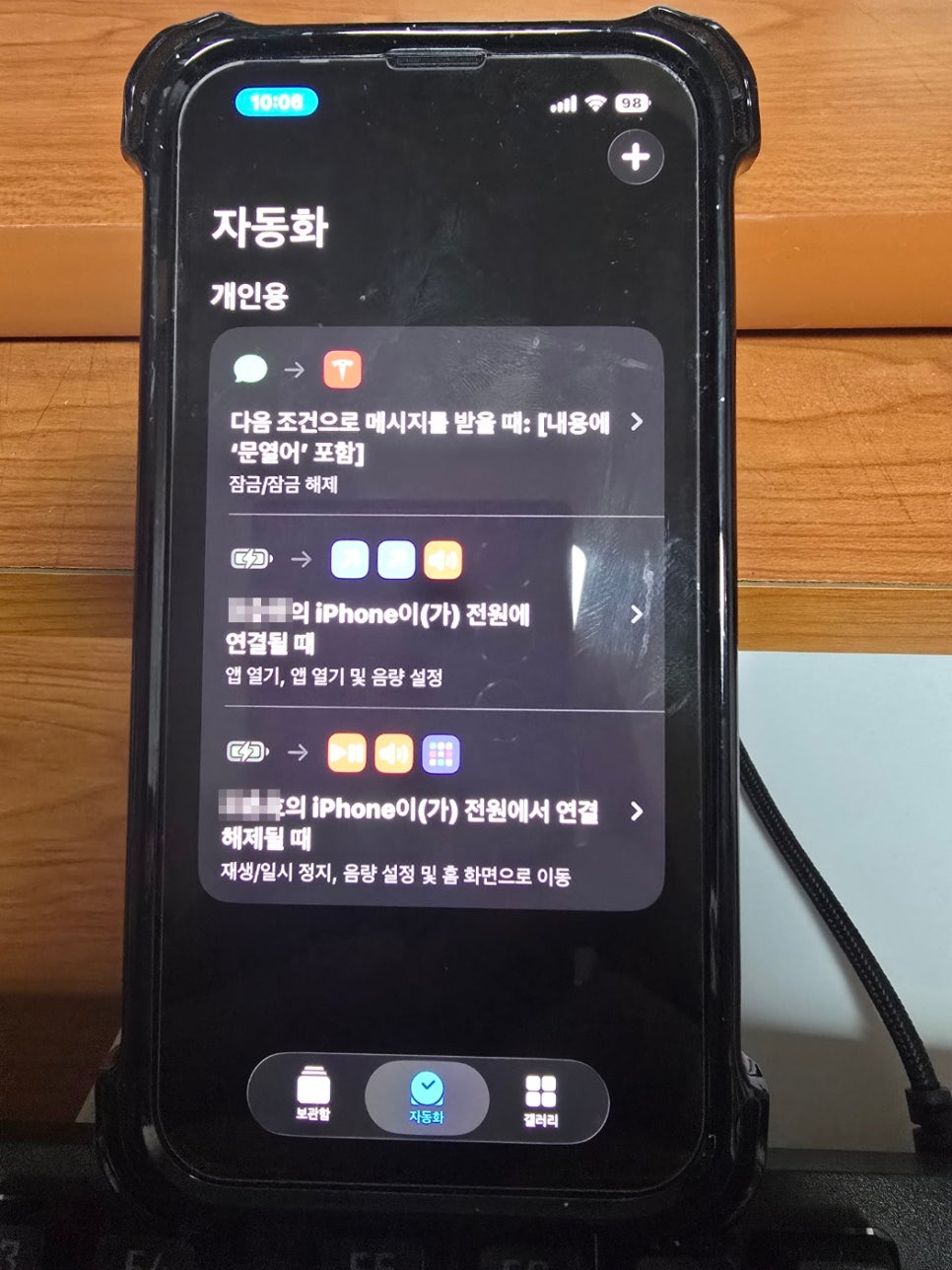
iOS Shortcuts automation setup : Triggering apps and setting volume when connected to MagSafe charger and disconnected.
Part 1: When Getting in the Car (Plugged In)
- Open the [Shortcuts] app on your iPhone.
- Tap the [Automation] tab at the bottom, then tap the [+] icon in the top right corner to create a new personal automation.
- Scroll down and select [Charger].
- Check [Is Connected], select [Run Immediately], and tap [Next].
- In the search bar, type [Open App] and select your HUD app and your preferred Navigation app (e.g., Waze, Google Maps).
- Next, search for [Set Volume] and add it to the workflow. Tap the blue percentage number and set it to your preferred navigation voice volume (e.g., 50%).
- Tap [Done]. Now, the moment your phone snaps to the MagSafe charger, your HUD and Maps are ready to go!
Part 2: When Getting Out of the Car (Disconnected)
- Create another automation and select [Charger], but this time check [Is Disconnected].
- Select [Run Immediately] and tap [Next].
- Search for and add the following actions:
- [Play/Pause] (Set it to Pause to stop any running media).
- [Set Volume] (Set it to 0% to keep things quiet).
- [Go to Home Screen] (This minimizes the apps and cleans up your screen).
- Tap [Done].
4. The Result: A Seamless Daily Commute
Whether it's a heavily congested morning rush hour commute or a relaxing drive home, this setup has completely transformed my Model Y experience. As soon as I sit in the driver's seat and snap my iPhone onto the mount, my command center boots up instantly. If you are a Tesla owner missing that traditional HUD experience, this simple iOS automation is an absolute game-changer.
It’s been over three months since I took delivery of my Model Y, and honestly, this automation setup has been a game-changer. By streamlining my HUD and navigation workflow, I get to enjoy the convenience of my previous ICE vehicles while fully embracing Tesla’s tech. If you're missing that familiar dashboard feel, I highly recommend giving this setup a try—it's incredibly easy to configure.
🔍 [Deep Dive 1] Part 1: Why Mercedes Feared It: The 50-Year Legacy and Hidden Giants (Read More)
BMW 5 [Part 1] Why Mercedes Feared It : The 50-Year Legacy of the BMW 5 Series and Its Hidden Giants
Hello, automotive enthusiasts and smart investors!Today, we are diving deep into the ultimate benchmark of executive sports sedans—the BMW 5 Series.This isn't just another generic review listing horsepower and torque. We are launching a comprehensive 3-p
cryptoteslaglobal.com
The Ultimate Tesla Model Y Juniper Autopilot Guide: Essential Settings & Practical Tips for Beginners
"While many talk about the expensive FSD (Full Self-Driving) upgrades, millions of Tesla owners rely on the included Basic Autopilot for their daily commute. If you aren't paying the $99/month for FSD, mastering these standard Autopilot settings is mandato
cryptoteslaglobal.com
The Ultimate Evolution of the BMW 3 Series: From the Classic E21 to the 8th Gen "Neue Klasse"
The Ultimate Evolution of the BMW 3 Series: From the Classic E21 to the 8th Gen "Neue Klasse"
For decades, the BMW 3 Series has stood as the undisputed benchmark of the D-segment sports sedan. As the automotive world stands on the brink of an electric revolution, we take a nostalgic journey through the generations of this iconic model—exploring h
cryptoteslaglobal.com