Are you tired of unskippable YouTube ads ruining your mobile viewing experience? Do you want to extract the key points from a 40-minute crypto analysis in just seconds without paying for premium AI tools? Discover how the Microsoft Edge mobile app's new Extensions feature and built-in GPT-4 Copilot can revolutionize how you consume video content—completely for free.
1. The Mobile YouTube Dilemma

We live in a fast-paced digital era where time is our most valuable asset. However, watching YouTube on a mobile device has become increasingly frustrating. Viewers are bombarded with back-to-back unskippable ads, and extracting valuable information from long-form content—like a deep-dive analysis on XRP market trends or educational tech podcasts—requires far too much time.
While many users resort to paying for expensive YouTube Premium and ChatGPT Plus subscriptions, there is a powerful, completely free "Tech Hack" available right now: The Microsoft Edge Mobile App.
2. Step 1: Installing Desktop-Grade Ad Blockers via Extensions
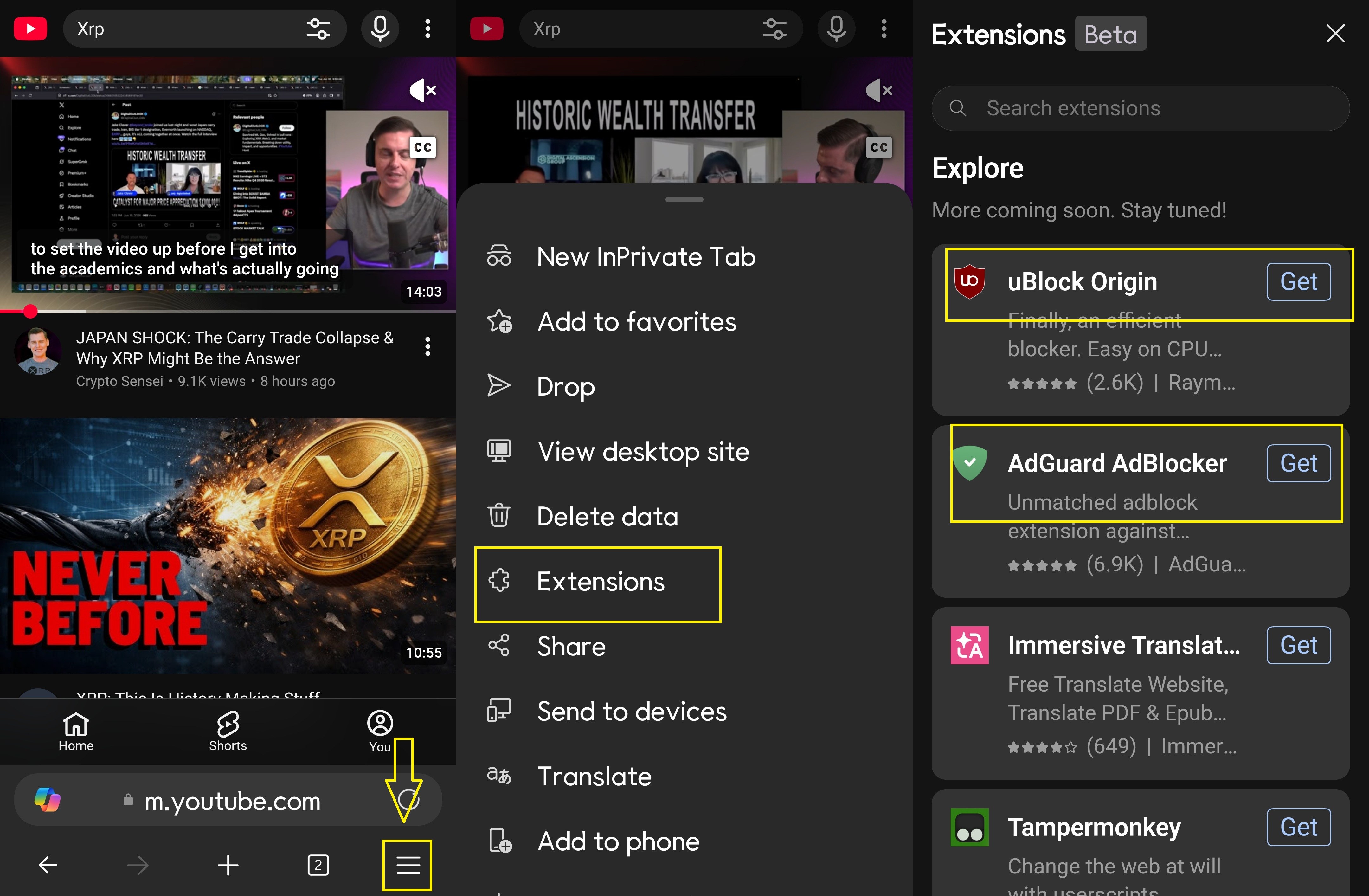
If you recently noticed that the native "Block ads" toggle disappeared from the Edge mobile settings, do not panic. Microsoft quietly rolled out something much better: Desktop-grade Extensions support for mobile.
Unlike Google Chrome, which restricts ad-blocking extensions on mobile to protect its YouTube revenue, Edge now allows you to install the most powerful ad blockers on the market directly on your phone.
- Open the Menu: Launch the Microsoft Edge app and tap the three horizontal lines (hamburger menu) at the bottom right corner.
- Access Extensions: From the pop-up menu, tap on [Extensions].
- Install the Blocker: In the Explore section, you will see top-tier blockers like uBlock Origin and AdGuard AdBlocker. Simply tap the [Get] button next to either of them.
- Enjoy Ad-Free Viewing: Once installed, navigate to youtube.com within the Edge browser. The extension will automatically neutralize all video ads, providing an uninterrupted streaming experience.
3. Step 2: Unleashing Copilot (GPT-4) for Instant Video Summaries

The true magic of using Microsoft Edge lies in its seamless integration with Copilot, Microsoft's AI assistant powered by OpenAI's GPT-4. You don't need to switch apps or copy-paste transcripts.
- Access Copilot: While watching a YouTube video in the Edge browser, tap the glowing [Copilot icon] located at the bottom center of the screen.
- Prompt the AI: In the chat interface, simply type a prompt like: "Generate a bullet-point summary of this video's key takeaways."
- Instant Knowledge Extraction: Copilot will instantly analyze the video's context and transcript, providing you with a clean, structured summary. This is an absolute game-changer for efficiently consuming long-form content.
4. Why This is the Ultimate Mobile Productivity Hack
By making a simple switch to the Microsoft Edge mobile browser for your YouTube consumption, you achieve two massive upgrades:
- Financial Savings: You bypass the need for YouTube Premium (for ad-free viewing) and ChatGPT Plus (for GPT-4 access).
- Time Efficiency: You can extract the core value of a 1-hour lecture in just 30 seconds using Copilot's summarization.
In the rapidly evolving Web3 and Tech landscape, working smarter—not harder—is key. Download Microsoft Edge today, install uBlock Origin, and take back control of your time and attention.
"While fully immersing oneself in a creator’s hard work is always ideal, we all know that time and circumstances sometimes call for efficiency. When you need to grasp the core insights of a video in a flash, why not give a smart solution like this a try?"
[Deep Dive & Insights]
"Curious about the next wave of AI breakthroughs, biotech innovations, and advanced science—and how to translate those shifts into a winning investment mindset? Don't just watch the future unfold. Dive into my exclusive archive of in-depth analyses and discover where the smart money is heading next."
The AI Wealth Multiplier: How the Artificial Intelligence Boom Created a Record 3,302 Billionaires in 2026
The gap between traditional income and asset growth has never been wider. According to the latest 2026 Global Wealth Report by Swiss bank UBS, the artificial intelligence revolution is fueling a historic wealth transfer, pushing the global billionaire popu
cryptoteslaglobal.com
The Metamaterials Paradigm Shift : Harnessing Crypto Profits for Next-Gen Tech Stocks
The Metamaterials Paradigm Shift : Harnessing Crypto Profits for Next-Gen Tech Stocks
The convergence of breakthrough scientific research and macro-asset liquidity presents rare, generational investment opportunities. Discover the disruptive potential of Metalens technology and learn how to strategically rotate profits from the upcoming US
cryptoteslaglobal.com
The GLP-1 Obesity Drug Revolution: From Generic Price Wars to Crypto-Backed Bio-Megacap Investing
The GLP-1 Obesity Drug Revolution: From Generic Price Wars to Crypto-Backed Bio-Megacap Investing
What if the world’s hottest weight-loss drug isn’t just shedding pounds, but entirely rewriting the rules of social mobility, career success, and long-term asset allocation? Here is how the GLP-1 megatrend is shifting global wealth—and how to trade i
cryptoteslaglobal.com
The Ruthless Hunt on Wall Street : Why Samsung and SK Hynix Crashed in the ‘Leopold Incident’
The Ruthless Hunt on Wall Street : Why Samsung and SK Hynix Crashed in the ‘Leopold Incident’
Record earnings, explosive AI demand, and then... a total market wipeout. What really happened behind the scenes of the 'Leopold Incident'? We dissect the mechanisms of margin calls, forced liquidations, and how a massive hedge fund’s collapse triggered
cryptoteslaglobal.com