Have you checked the price of external HDDs or SSDs lately? If you have, you’ve likely let out a heavy sigh of frustration. From RAM modules to flash storage, PC component prices have been on a volatile upward trajectory recently.
It’s not just you—this is a global trend driven by a significant shift in semiconductor supply chains and explosive demand. Whether you’re looking to cut down on those recurring monthly cloud subscription fees or trying to build a secure offline archive for your massive collection of photos, 4K video, and music, you’ve likely found yourself opening your wallet wider than expected to secure enough storage.
But once you finally get that drive out of the box and plug it in, you’re hit with the first technical hurdle: "Which format should I choose?"
"Should I go with NTFS? Or is exFAT better?"
"Why is FAT32 still around, and is it outdated?"
It’s tempting to just click "OK" and move on, but making the wrong choice here can lead to disaster—like finding out your drive won't copy that 4GB+ movie file, or discovering your drive isn't recognized when you switch between your Windows PC, Mac, or Smart TV.
Today, we’re cutting through the jargon. I’ll break down the clear differences between NTFS, exFAT, and FAT32, and help you select the optimal format for your specific needs, ensuring your data is accessible on any device, anywhere in the world.
1. The Memory Price Surge : Why Your Tech Budget is Feeling the Squeeze
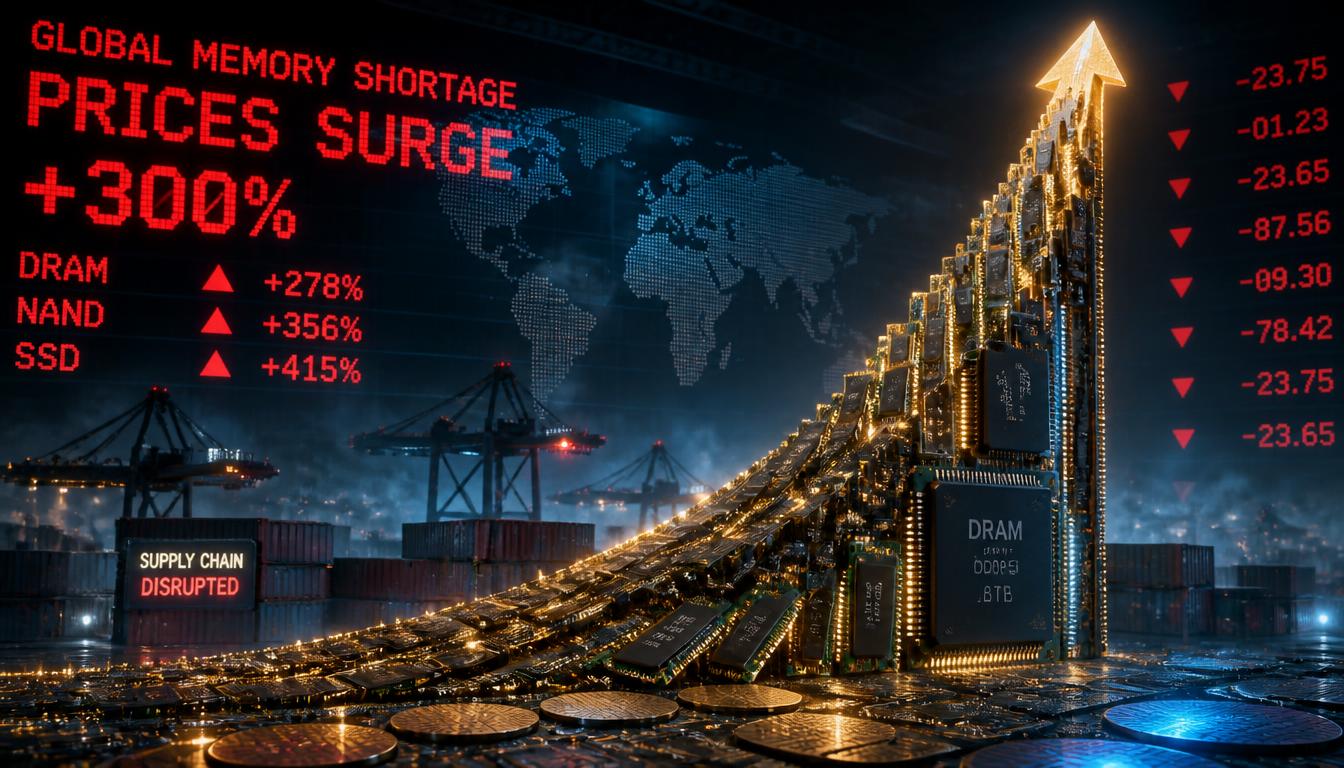
If you feel like prices for external drives and PC parts have skyrocketed compared to last year, you’re not imagining it. This isn't just about inflation or short-term logistics; we are witnessing a global "surge" in the semiconductor market. So, what is really driving these costs up? It comes down to three fundamental shifts.
① The AI Boom and Capacity Consumption
The primary culprit is the explosive growth of AI (Artificial Intelligence) infrastructure. Massive AI data centers are being built worldwide, and the new wave of high-performance AI servers and on-device AI smartphones/PCs requires an unprecedented amount of memory. As server capacity demands soar, a significant portion of the global memory supply is being diverted to these high-end enterprise products, leaving less for the consumer market.
② Manufacturer Priorities : High-Value vs. Consumer-Grade
Global memory giants like Samsung, SK Hynix, and Micron are prioritizing high-profit, high-value products—specifically HBM (High Bandwidth Memory) and high-performance server DRAM.
Because these companies are reallocating their production lines (Wafer Capacity) to meet server demand, the supply lines for general-purpose DRAM and consumer NAND Flash (the tech inside your SSDs and USBs) have been significantly reduced. Simply put, supply is artificially constrained because manufacturers are chasing higher margins elsewhere.
③ The Perfect Storm : Low Inventories and Supply Bottlenecks
Post-pandemic, many companies kept their inventory levels lean. When demand suddenly spiked, the market shifted rapidly in favor of suppliers. With large-scale corporate contracts (LTA) taking priority in the supply chain, the trickle-down effect hit retail consumers hard, resulting in the drastic price spikes we’ve seen over the last several months.
📊 Quick Summary : Price Trends by Storage Category
| Category | Key Items | Price Trend | Primary Cause |
| DRAM | Server/PC DDR5, Mobile DRAM | Sharply Upward | Focus on HBM for AI server demand |
| NAND Flash | Consumer SSD, USB Memory | Following Upward Trend | High demand for server SSDs consuming supply |
| HDD | External HDD, NAS Drives | Gradual Increase | Impact of rising SSD prices & archiving demand |
The memory market is going through a massive transformation as the global IT paradigm shifts toward an AI-centric era. Now that we understand why prices are moving the way they are, let’s dig into the technical differences between "Memory" and "Storage," and see how your PC components are actually working under the hood.
💡 Where to Track Memory Price Trends
If you’re a tech enthusiast or a buyer looking for transparency, several global platforms track these trends in real-time. These are the gold standards used by industry experts and professional tech media.
- TrendForce (DRAMeXchange) What it is : The world’s leading market intelligence provider for the memory industry (DRAM, NAND Flash, Wafers). Why use it : They track both Spot Prices and Contract Prices. If you want to understand the macroeconomic reasons behind price fluctuations (supply chain changes, AI trends), this is the most objective source used by professionals.
- PCPartPicker / RamRadar What it is : Hardware price trackers that show real-time sales prices and historical price charts for finished products (RAM modules, SSDs). Why use it : These sites are perfect for the average consumer to see, "Is RAM at a 1-year high?" or "Is now a good time to buy?" It uses intuitive line and bar charts that anyone can understand.
Market data from TrendForce indicates that spot prices for generic NAND wafers and DRAM have been on a steep upward trajectory over the last few months due to the market's heavy concentration on AI server infrastructure. Consequently, the current price hikes for consumer storage parts emerged as an inevitable outcome of this broader macroeconomic shift.
2. Memory vs. Storage : Clearing up the Confusion
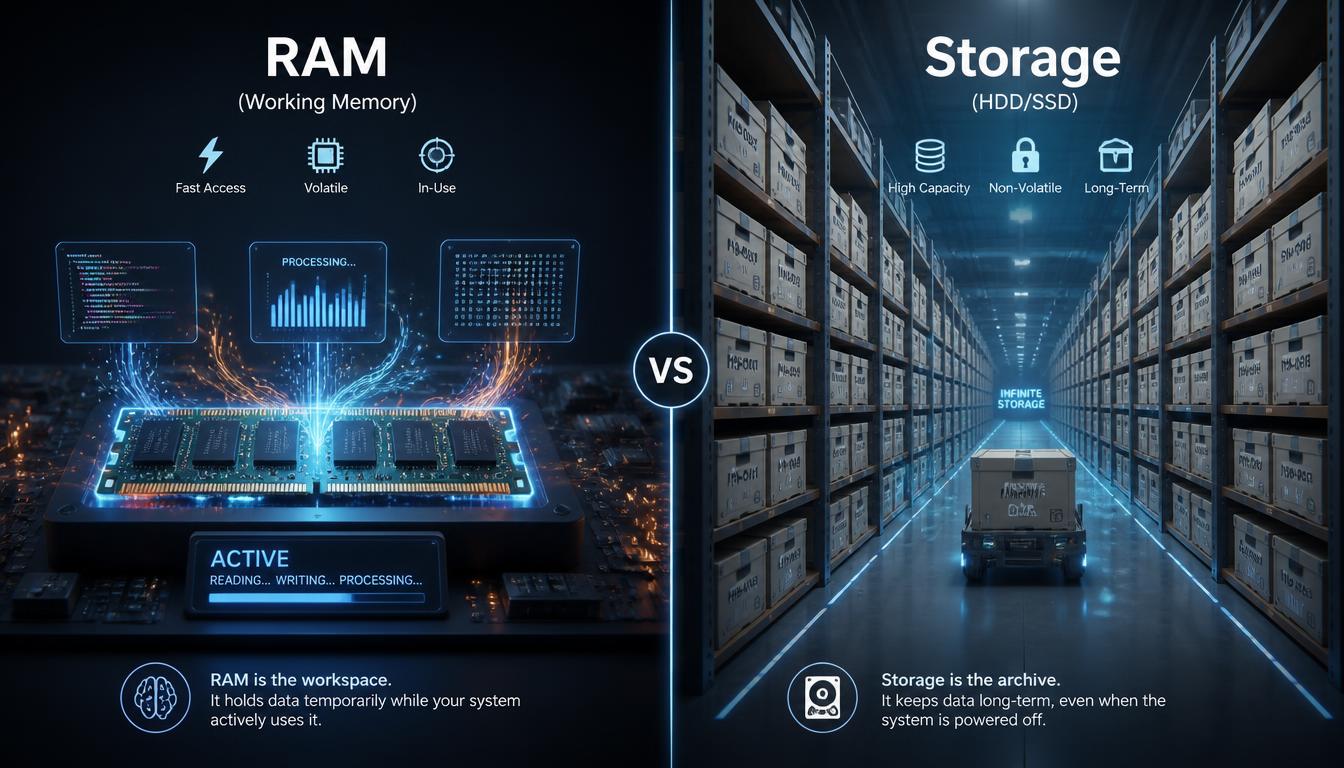
We often hear people say, "My phone’s memory is full," or "I need to upgrade my computer's memory." While we know what they mean, these terms are technically distinct. To make smart tech decisions, it’s vital to understand that your computer essentially uses two different types of "space": one for real-time processing and one for permanent data retention.
① RAM (Main Memory) : The "Workbench"
- The Nature : RAM is "volatile" memory. This means it only holds data while your computer is powered on.
- The Role : Think of this as your active workspace. When you open a program or edit a photo, the CPU pulls that data into RAM so it can process it instantly.
- Key Characteristics : More RAM allows for smoother multitasking. However, the moment you turn off the computer, the RAM is "wiped clean."
② Storage (HDD, SSD, USB, External Drives) : The "Archive"
- The Nature : Storage devices are "non-volatile." They retain your data even when the power is off.
- The Role : This is your permanent warehouse for photos, videos, documents, and installed programs.
- Types
- HDD (Hard Disk Drive) : Uses physical spinning platters to read/write data. While slower than SSDs, they offer unbeatable price-per-gigabyte, making them the gold standard for massive, long-term backups (archiving).
- SSD (Solid State Drive) : Uses semiconductor chips (NAND Flash) for near-instant access. This is the industry standard for your computer’s main operating system.
💡 The "Desk vs. Warehouse" Analogy
If technical specs feel overwhelming, imagine a busy office:
- RAM is your desk. A larger desk allows you to spread out more documents and work on several tasks simultaneously. But when the workday ends (you power down), you clear your desk completely. The next morning, the desk is empty, ready for a fresh start.
- Storage (SSD/HDD) is your filing cabinet/warehouse. Even if you aren't working on those files today, they are safely tucked away in boxes. Whether you go home for the night or take a week-long vacation, your documents stay exactly where you left them, safely archived until you retrieve them.
So, when I bought that 5TB external HDD, I wasn't buying a bigger "desk" to make my computer faster; I was building a massive, dedicated "warehouse" to store my digital memories permanently.
3. Under the Hood : From DDR to NAND Flash
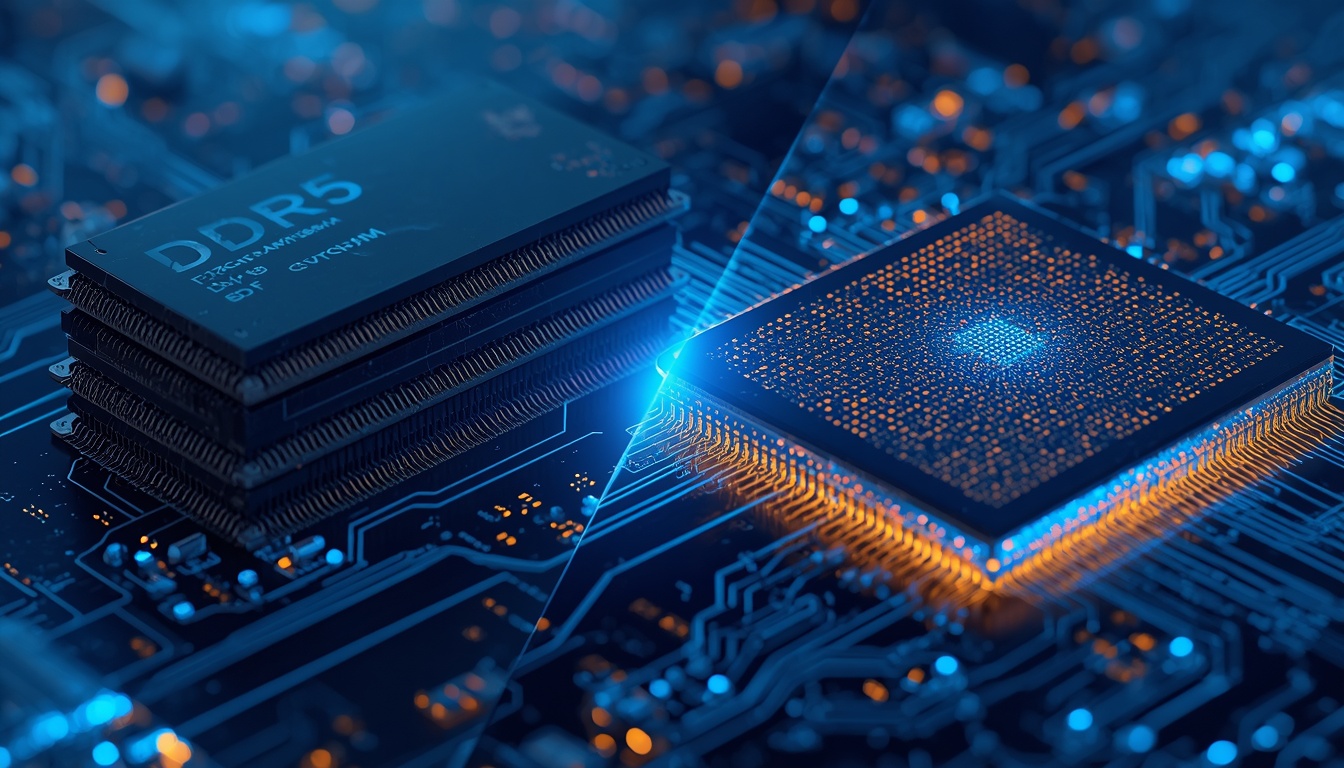
Computers rely on a symphony of semiconductor technologies. To understand the current market volatility, we need to distinguish between volatile (RAM-based) and non-volatile (Flash-based) technologies.
[Part 1] Volatile Memory : The Speed Demons (DRAM)
DRAM provides the high-speed "workspace" for your CPU.
- DRAM (Dynamic RAM) : The foundation of PC and smartphone memory. It requires constant power to keep data alive.
- DDR (Double Data Rate) Series : The standard for DRAM performance. By transferring data on both the rising and falling edges of the clock signal, it effectively doubles the throughput. Currently, DDR5 is the mainstream standard for high-performance computing, drastically reducing bottlenecks.
- HBM (High Bandwidth Memory) : The main driver of the current price surge. HBM stacks DRAM dies vertically to create an incredibly wide data "highway." It is currently the primary target for AI infrastructure and large-scale GPU computing, which is why global production lines are favoring HBM over consumer-grade memory.
[Part 2] Non-Volatile Memory : The Digital Keepers (Flash)
Flash memory is the backbone of modern storage (SSDs, USBs, and mobile storage).
- NAND Flash : It "locks" data into transistors even without power. NAND is categorized by its "cell structure" (how many bits it packs into each unit):
- SLC (Single-Level Cell) : 1 bit per cell. Extremely fast and durable, but very expensive. Reserved for enterprise/server use.
- MLC (Multi-Level Cell) : 2 bits per cell. The former gold standard for high-performance SSDs.
- TLC (Triple-Level Cell) : 3 bits per cell. The current consumer standard. It offers the best balance of price, performance, and longevity.
- QLC (Quad-Level Cell) : 4 bits per cell. Extremely high capacity and low cost, but with trade-offs in speed and endurance. Best for budget-friendly large archives.
- NOR Flash : Unlike the high-density NAND, NOR Flash focuses on rapid read speeds. It is typically used to store critical boot-up code (BIOS/UEFI) or firmware for small appliances.
[Part 3] Traditional Storage : The Mechanical Classic (HDD)
While not semiconductor-based, the HDD remains the king of cost-effective archiving.
- HDD (Hard Disk Drive) : Uses physical platters coated in magnetic material. A mechanical head moves across the disk to read/write data.
- Pros/Cons : Mechanically complex and slower than SSDs, but for TB-scale archiving, they remain the most economical way to store cold data (backups, media libraries).
💡 Summary : Memory vs. Storage
- RAM/DDR/HBM defines your computer's "real-time thinking speed."
- NAND Flash (SSD) and HDD defines your "long-term memory archive."
The recent market volatility is essentially a "supply crunch" caused by the AI industry's aggressive move to secure HBM, server DRAM, and high-performance NAND, which has had a knock-on effect on the prices of every storage device on your shelf.
4. Understanding File Systems : The Road Map for Your Data
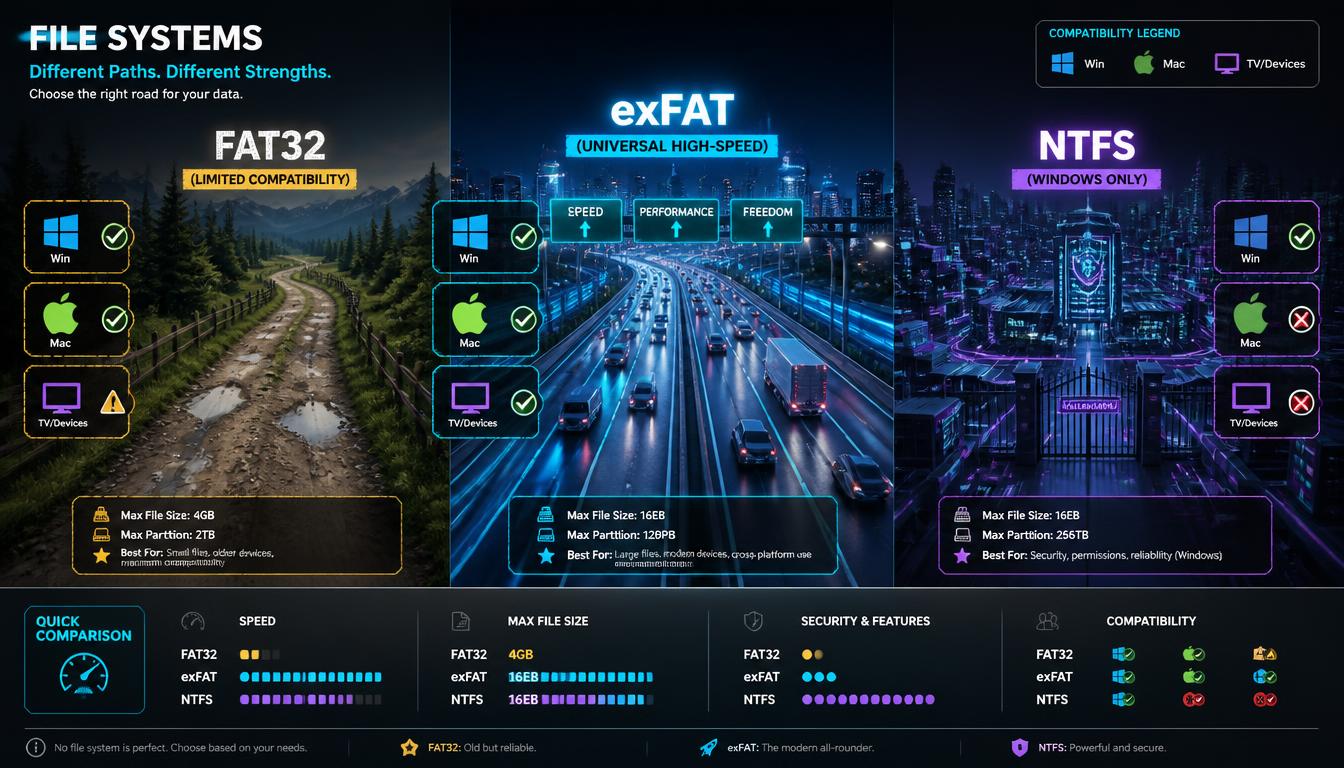
Think of your hard drive as a massive, empty landscape. A file system is the road network you build on that landscape. It determines how your data—the cars—is organized, recorded, and retrieved. Choosing the right "road map" (File System) is crucial for compatibility and performance.
[Part 1] Compatibility Standards (Windows & Cross-Platform)
- FAT32 (File Allocation Table 32)
- Technical Context: Debuted in 1996, this is a "classic" file system. Because it is architecturally simple, it is universally recognized by almost every electronic device (Windows, Mac, Linux, Smart TVs, Game Consoles).
- The Critical Limitation: Due to its legacy architecture, it cannot support single files larger than 4GB. It also has a maximum partition limit of 2TB.
- Modern Context: It is rarely used today except for legacy USB drives or devices that require universal hardware compatibility.
- exFAT (Extended File Allocation Table)
- Technical Context: Developed by Microsoft to overcome the limitations of FAT32, specifically for large external storage.
- Advantages: It retains the cross-platform compatibility of FAT32 but removes the file size limit (supporting files up to 16EB). It is the "gold standard" for cross-platform usage between Windows and macOS.
- Warning: It lacks "Journaling," a feature that protects data during unexpected power cuts. If you unplug an exFAT drive while it’s writing, the risk of data corruption is significantly higher. Always "Safely Eject" your drive.
- NTFS (New Technology File System)
- Technical Context: The native, high-performance standard for Microsoft Windows.
- Key Features (Journaling & Permissions): NTFS tracks changes in a "Journal" log. If the system crashes, it can restore itself, making it highly reliable. It also supports file encryption (EFS) and advanced user permissions (ACL).
- Limitations: While perfect for Windows, macOS treats NTFS as "Read-Only." To write to an NTFS drive on a Mac, you need expensive third-party software (like Paragon or Tuxera).
[Part 2] OS-Specific & Advanced File Systems
- APFS (Apple File System): Designed by Apple specifically for SSDs and Flash media. It offers lightning-fast cloning and "Space Sharing" capabilities, making it the default for modern macOS users.
- ext4 (Extended File System 4): The standard for Linux. Known for extreme stability, it is the bedrock of NAS (Network Attached Storage) systems and Linux-based home servers.
💡 The "Digital Address System" Analogy
Still confused? Think of file systems as types of address systems in a city:
- FAT32 is the "Old Neighborhood" : Everyone knows the streets, and every delivery driver (device) can find the house. However, there’s a strict rule: "No package can weigh more than 4 tons (4GB)." If you try to move a giant piece of furniture (a 4K movie), you're blocked.
- NTFS is the "Fortified Corporate Headquarters" : It’s secure, has a detailed log of everyone who enters (Journaling), and offers top-tier management. But, it only accepts Windows "ID badges." If an Apple (Mac) employee walks in, they can look around, but they can’t change anything (Read-Only).
- exFAT is the "Universal Highway" : It’s the open road. No 4GB limits, no OS barriers. You can switch between Windows, Mac, and your TV without friction. However, since there are no "traffic police" (Journaling), you must drive carefully—always pull over (Safely Eject) before turning off the engine.
📊 Quick Comparison : File System Reference
| Format | Max File Size | Max Volume Size | Windows | macOS | Best For |
| FAT32 | 4 GB | 2 TB | Supported | Supported | Legacy devices, Game consoles |
| exFAT | 16 EB | 128 PB | Supported | Supported | External HDDs, Cross-Platform Use |
| NTFS | 8 PB | 8 PB | Supported | Read-Only | Windows-only Backups |
| APFS | 8 EB | 8 EB | No | Supported | Mac-only SSDs |
| ext4 | 16 TB | 1 EB | No | No | Linux, NAS |
5. Real-World Strategy : Building Your "Personal Cloud"
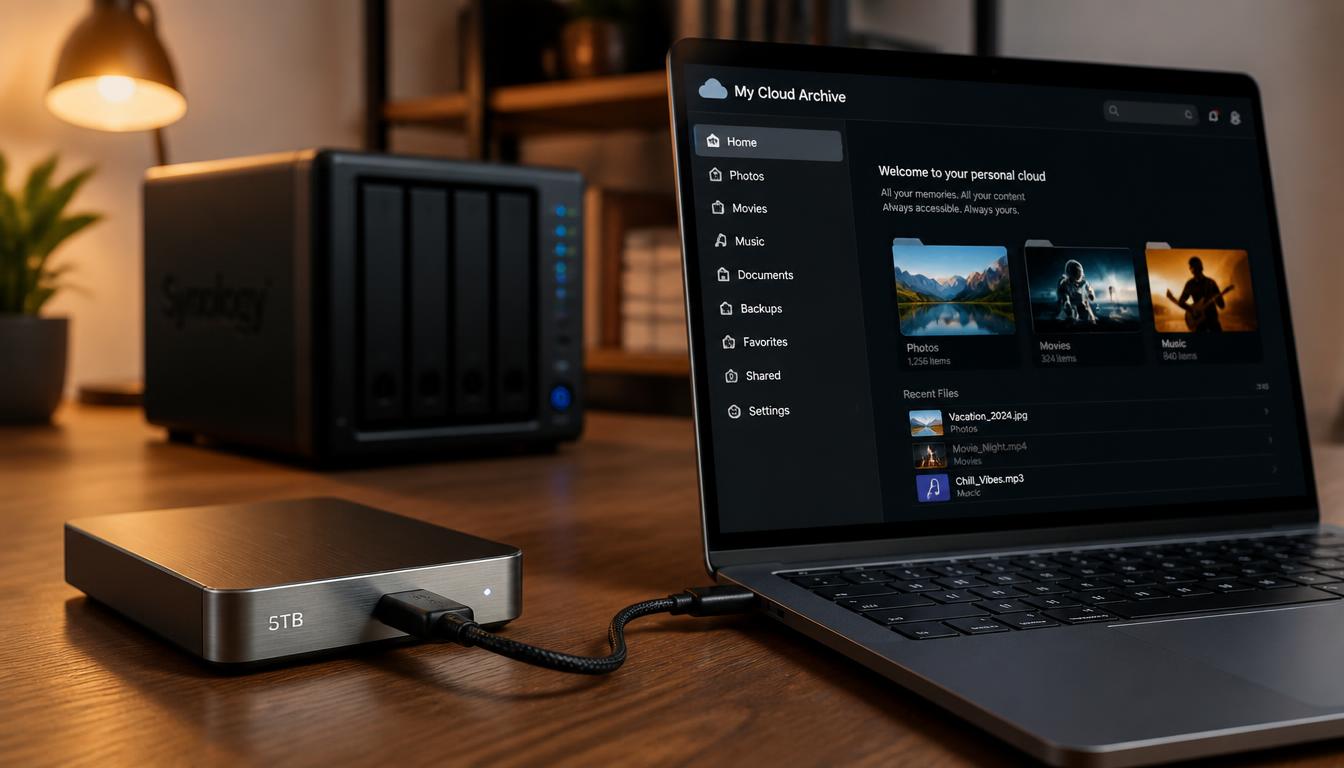
Building a "Personal Cloud" doesn't always require expensive gear. While many debate whether to build a NAS (Network Attached Storage) system—like a Synology setup—I ultimately opted for a 5TB Portable External HDD.
It is the perfect balance between cost, performance, and simplicity.
🎬 Who Needs High-Capacity Storage?
- Video Creators : For 4K/8K RAW footage and project files that are too cumbersome to upload to the cloud.
- Photographers : For archiving massive RAW files after photoshoots.
- Media Enthusiasts : For digital libraries (ripped DVDs, high-res FLAC audio) to stream to Smart TVs.
⚖️ NAS vs. DAS (Direct Attached Storage)
| Feature | NAS (Network Storage) | DAS / Portable HDD (My Choice) |
| Concept | Your own private server (Mini-Data Center) | Your portable "Digital Safe" |
| Access | Via Wi-Fi/Internet (Remote Access) | Direct Cable Connection |
| Cost | High (Server + Multiple Drives) | Low (Cost of one HDD) |
| Complexity | High (Requires IT/Networking knowledge) | Extremely Low (Plug & Play) |
I chose the 5TB HDD (exFAT) because I prefer a straightforward, cost-effective solution for media consumption over the maintenance and networking headaches of a NAS.
🔧 Should You Reformat Your New WD Drive?
Most drives (like WD) come pre-formatted as NTFS. Should you change it?
- Stick with NTFS if : You are 100% committed to a Windows-only workflow. It’s safer for Windows users due to its "Journaling" feature.
- Reformat to exFAT if (Highly Recommended) : You want true "Personal Cloud" flexibility. If you want to plug your drive into a Smart TV, a MacBook, or a tablet without permission errors, exFAT is the way to go.
How to reformat:
- Connect the drive.
- Right-click the drive in "This PC" and select "Format."
- Change the File System to "exFAT."
- Set the Volume Label (e.g., "My_Cloud_5TB").
- Check "Quick Format" and hit Start.
🎯 Final Thoughts
Spending $150–$200 on a 5TB drive might seem like a lot, but understanding the tech inside has turned that purchase from a "simple storage upgrade" into a robust, personal digital vault. If you’re tired of monthly cloud subscription fees or have scattered files across your laptop and phone, building your own offline storage archive is the smartest tech move you can make today.
[Deep Dive & Insights]
Are you curious about the next wave of AI innovation, breakthroughs in biotechnology, or the cutting-edge science defining our future? Don't just watch the future happen. Use my curated, deep-dive analysis to identify emerging investment trends and translate these changes into a successful, forward-thinking strategy.
Ripple (XRP) and Institutional Adoption : The Hidden Financial Engine Powering Global Finance
How to Fix the 2TB Hard Drive Limit : Convert MBR to GPT in Windows
[PART 1] "Is Your AI Just a Chatbot? Why 'AI Agents' are the New Digital Workforce Powering the Next Crypto Bull Run"
Is your AI assistant just a glorified search engine?Most people think AI stops at "Chatting." You ask a question, it gives an answer, and you move on. But that’s the old era of AI. We have officially entered the age of AI Agents—the digital workforce t
cryptoteslaglobal.com
Follow the Money : Why the Fed’s Reverse Repo Facility Is the Ultimate Signal for the Next Liquidity Wave
In the complex plumbing of global finance, professional investors don't just watch headlines—they track the underlying mechanics of liquidity. While retail traders focus on price action, seasoned institutional managers watch one critical number: the Fede
cryptoteslaglobal.com
The GLP-1 Obesity Drug Revolution : From Generic Price Wars to Crypto-Backed Bio-Megacap Investing
The GLP-1 Obesity Drug Revolution: From Generic Price Wars to Crypto-Backed Bio-Megacap Investing
What if the world’s hottest weight-loss drug isn’t just shedding pounds, but entirely rewriting the rules of social mobility, career success, and long-term asset allocation? Here is how the GLP-1 megatrend is shifting global wealth—and how to trade i
cryptoteslaglobal.com
How to Fix YouTube ReVanced Buffering Forever : Auto-Updates via Obtainium
How to Fix YouTube ReVanced Buffering Forever : Auto-Updates via Obtainium
Frustrated with YouTube ReVanced constantly buffering or breaking after a few weeks? Discover how to use Obtainium to pull seamless, automated patches directly from GitHub for uninterrupted background playback. 1. The Cost of Ad-Free Streaming and the ReVa
cryptoteslaglobal.com